


We’re excited to introduce you to our new grouping features in Perusall! Perusall now lets you utilize multiple group sets within a course, giving you more flexibility and more control over how students are grouped.
Whether you’ve previously used Perusall or are new to the platform, you can quickly set up groups the way you want them to in Settings > Grouping. Here are some common use cases:
No Grouping:
If you want all students talking with each other – perfect for many small to medium-sized courses – just select No grouping in Settings > Grouping and students will all be able to interact with each other.

No need to adjust any other grouping!
Fixed groups:
If you want students to be working with the same discussion partners throughout the course, select Fixed groups. Then build or import a group set to use for your course. You can import groups from a spreadsheet, or directly from your LMS (Canvas, Blackboard, or D2L/Brightspace). If you want to randomize, you can opt to randomly assign students to groups when building your group set.
For long-time Perusall users, this choice is similar to Specify groups.
.png)
Assignment-based grouping or Library content-based grouping:
If you want students to interact with different groups of students throughout the course, select Assignment-based grouping or Library content-based grouping. Select your preference in grouping methods.
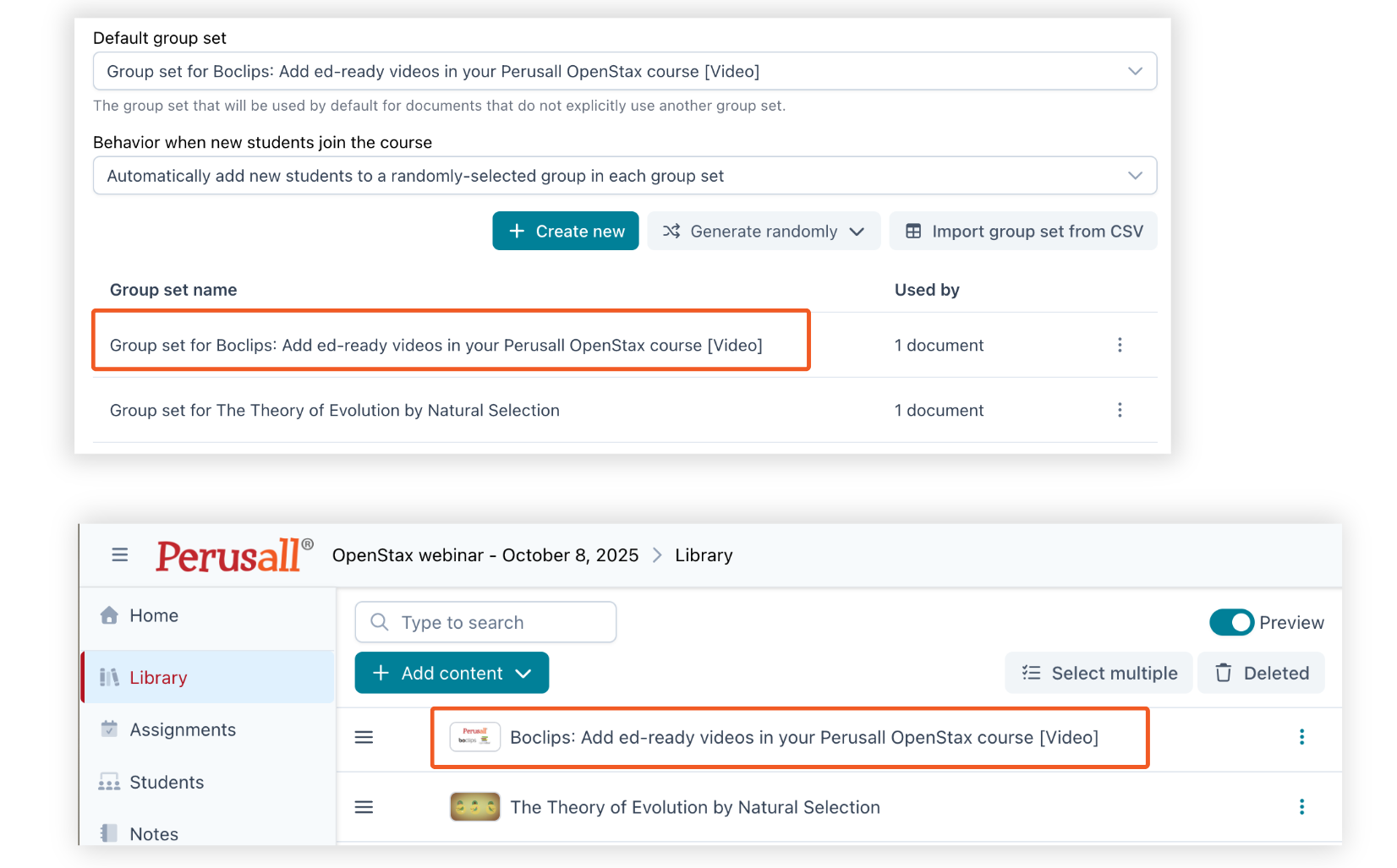
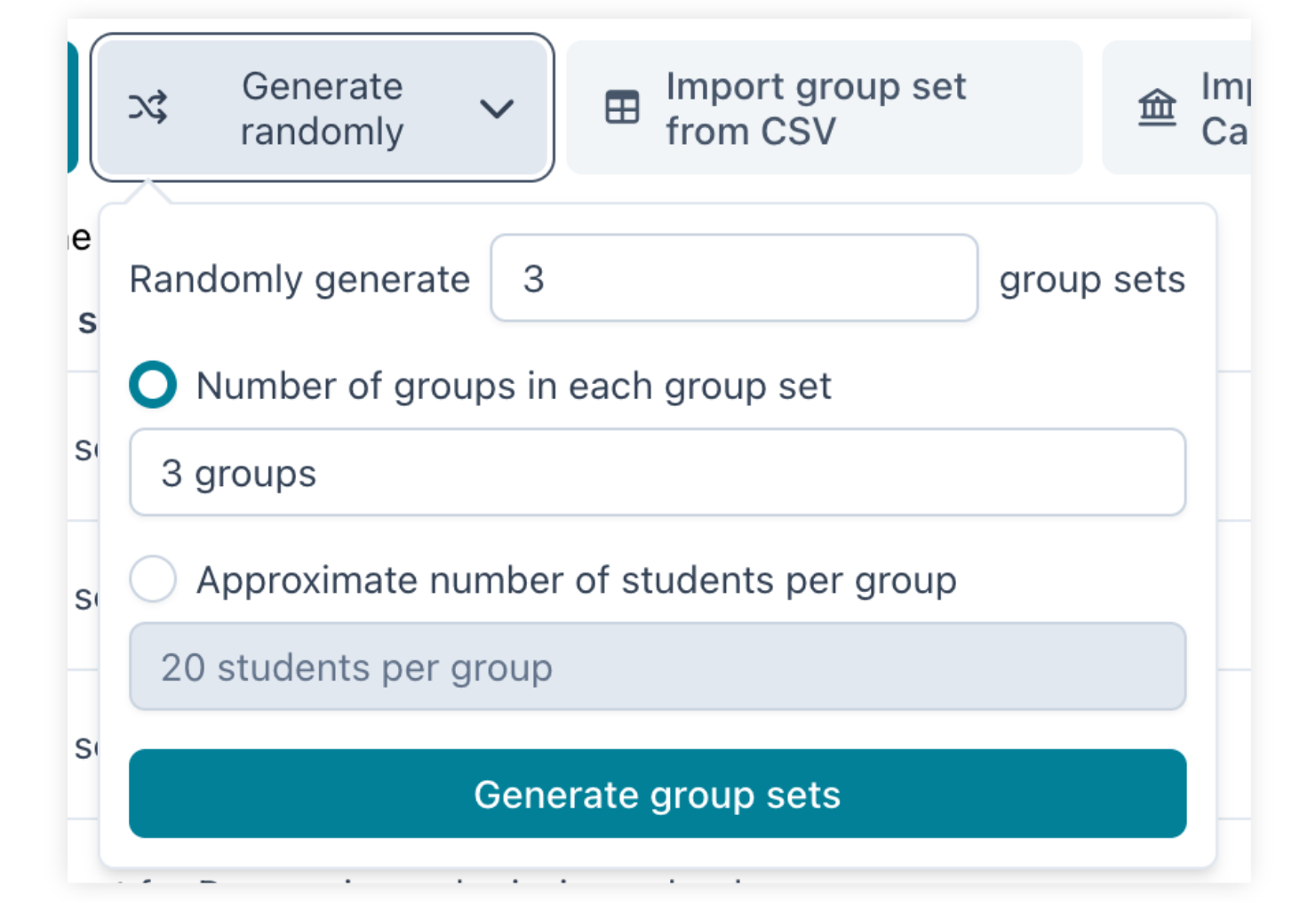
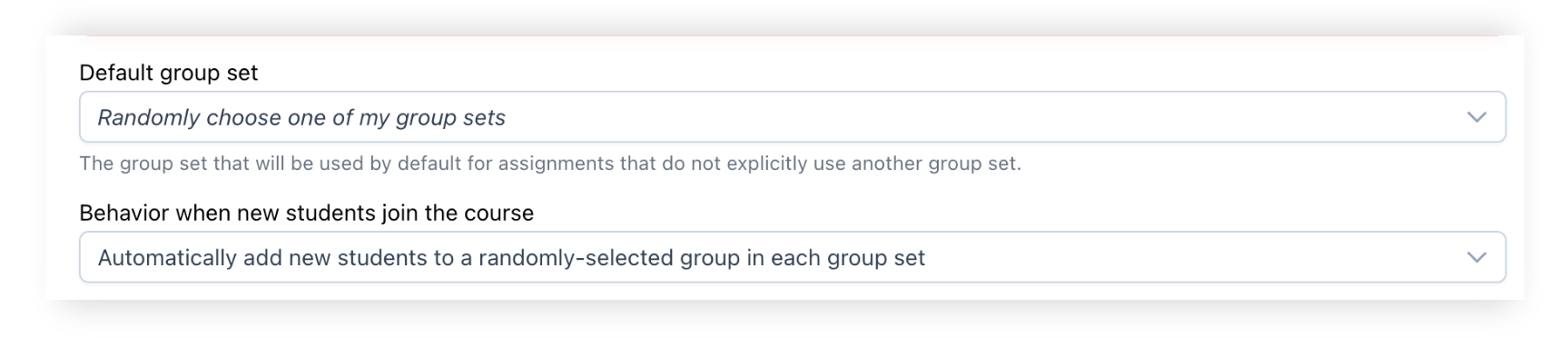
The simplest way to set this up is to define a few different group sets (you can use the Randomize button to generate multiple group sets randomly all at once) and then ask Perusall to randomly choose one of your group sets to each assignment or document.
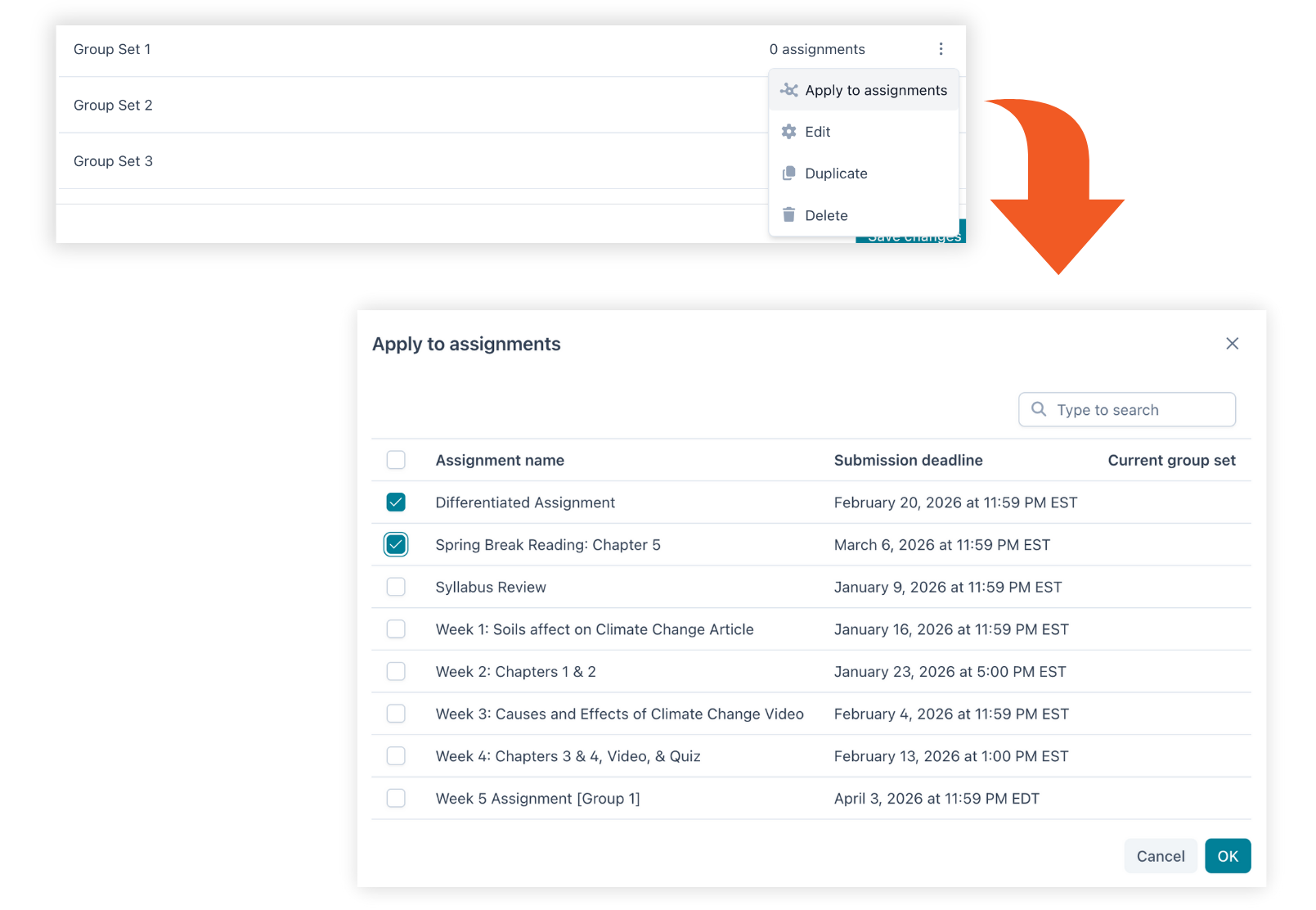
Or, if you want more control, you can choose exactly which group sets to apply to each assignment or document.
Behavior when new students join the course:
However you choose to set up your group sets, you can also decide how to treat students who join your course later on. We suggest selecting Automatically add new students to a randomly-selected group in each group set so new students will find themselves in a group with other students to talk to, but if you prefer you can keep new students isolated until you determine how to group them.

Are students not able to see their classmates' comments?
If a student is the first one in their group to comment on a particular document, then they won't see any other comments in the document even though other students in the class may have also started commenting. This is normal; they should start to see other students' comments as others in their group start reading and commenting on the document as well. As a first step, you can check their group's activity using one of the methods from above.
Want to learn more?
Read how to set it up here, and join us at the Perusall Academy - January 7th through February 6th!


.png)